Why CreativeBuilderStudio Uses an Isolated Background Remover
Preparing clean transparent PNG graphics is essential before placing artwork onto dark or light garment fabrics, applying Photoshop-grade fx strokes and drop shadows, or generating 300 DPI screen-print separations. CreativeBuilderStudio runs its Standalone Background Remover (/tools/background-remover) in its own isolated browser window and renderer process so you can test cutouts, sample target background colors, and fine-tune edge alpha mattes without ever interrupting or mutating your active 2D sewing pattern and 3D WebGL garment session.
Please note that this built-in Background Remover is a convenience utility designed for clean apparel logos, vector-style graphics, and solid or uniform backdrops — it may have inaccuracies and cannot cleanly remove or erase complicated photographic backgrounds containing busy textures, overlapping scenery, or a lot of fine lines and complex details. That is also why processing and previewing your image for background removal is completely free (0 credits), so you can freely test and inspect whether the automatic cutout works for your artwork before deciding to save or transfer it. CreativeBuilderStudio is an apparel pattern and 3D garment mockup studio, NOT a dedicated photo editing software or image retouching web application. If you require pixel-perfect cutouts for complex photographs, you may use your regular professional photo editing software (such as Adobe Photoshop or GIMP) to perfectly remove the background of the photo first before uploading your transparent PNG into the Studio.
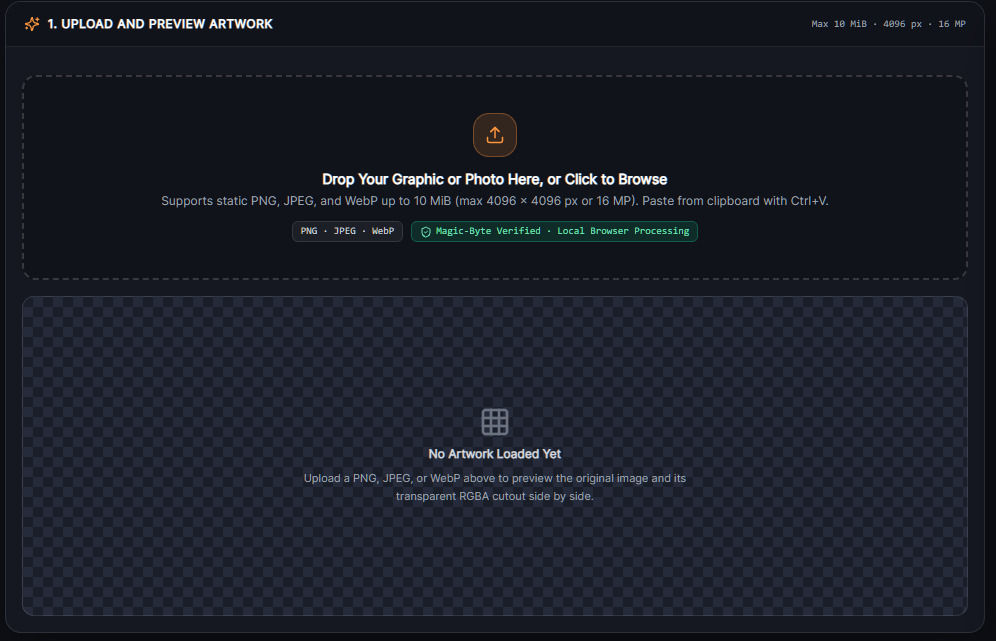
Upload and Preview Artwork Workspace
The primary canvas panel accepts static PNG, JPEG, and WebP graphics up to 10 MiB (max 4096 × 4096 px or 16 MP) via drag-and-drop, file browser selection, or direct Ctrl+V clipboard paste. Every uploaded file undergoes zero-trust binary Magic-Byte Verification and local browser EXIF stripping before rendering your original artwork and its transparent RGBA cutout side by side over the interactive checkerboard viewport.
Three Specialized Cutout Algorithms
Switch between three purpose-built segmentation modes depending on your artwork structure:
- Smart Auto (Contour + Inner Holes): Floods the outer background perimeter and automatically clears enclosed counter-holes inside letters (
A,B,O,P,R) and emblem cutouts. - Outer Contour Flood Only: Removes only the exterior background connected to the canvas border while preserving interior graphic highlights even if they match the background color.
- Custom Color Key (Chroma): Removes a specific sampled or picked color across the entire image.
Independent Edge Smoothness and Edge Feather Controls
Fine-tune your alpha boundary with dedicated, separated sliders for contour anti-aliasing and soft feathering:
- Color Tolerance (5 – 95, Default 32): Controls perceptual redmean color distance threshold from Strict (5) to Balanced (32) and Aggressive (95).
- Edge Smoothness (0.0 – 5.0, Default 2.0): Independently smooths jagged pixel stair-stepping along the cutout contour from Crisp (0.0) to Smooth (5.0).
- Edge Feather (0.0 px – 4.0 px, Default 1.5 px): Independently applies a soft sub-pixel alpha gradient falloff along outer borders.
Interactive Eyedropper and Edge Halo Decontamination
Eliminate white or colored fringes around dark streetwear graphics before printing on heavyweight tees:
- Live Pixel Eyedropper (Sample): Click any pixel directly on the Original Source preview to lock onto custom studio backdrops, off-white paper, or colored mockups.
- Edge Halo Decontamination Toggle: Automatically subtracts background color bleed from semi-transparent border pixels (alpha 8–242) for halo-free placement on dark garments.
- 4 Garment Preview Backdrops: Inspect your cutout against Checkerboard, Dark Tee, Light Tee, or high-contrast Chroma green.
Guest Live Preview and Signed-In Sidebar Access
Anyone can test the Background Remover immediately, while saving and refinement controls are protected for registered accounts:
- Free Guest Preview: Unauthenticated visitors can upload or paste (
Ctrl+V) an image and inspect the automatic transparent RGBA cutout side-by-side. - Sign Up / Sign In Sidebar Unlock: Signing in unlocks the right-hand Cutout and Edge Refinement sidebar and the Actions and Studio Transfer panel.
- Zero-Trust Magic-Byte Validation: Enforces PNG, JPEG, and WebP binary signature checks, 10 MiB max size, and automatic EXIF/GPS metadata stripping.
Send to Studio Editor with Top-Level Review Modal (2 Credits)
Clicking Send to Studio Editor (2 Credits) opens the Confirm Background-Removed Artwork Import modal right on top of the workspace so you can verify everything before committing:
- Preview the verified RGBA PNG cutout over a high-contrast transparency grid with exact pixel dimensions and file size.
- Customize the Artwork Layer Name and choose the exact Target Garment Zone (Front, Back, Left Sleeve, Right Sleeve, Collar, Cuffs, Hem, or Pocket).
- Click Add as Artwork Layer · 2 Credits to place the layer directly onto your garment in
/studiowith full Undo/Redo support.
Download Clean 32-Bit Transparent PNG (2 Credits)
Need the transparent cutout for external DTG RIP software, Adobe Illustrator, or Photoshop?
- Click Download Transparent PNG (2 Credits) to save a clean, metadata-stripped 32-bit RGBA
.pngfile named after your sanitized artwork filename. - Both Download Transparent PNG and Send to Studio Editor clearly display their
2 Creditsbadge directly inside the button so you are always informed before any credit deduction.
Background Remover Technical Specifications and Credit Schedule
| Parameter / Action | Specification | Access / Credit Cost |
|---|---|---|
| Supported Input Formats | PNG, JPEG, WebP (Magic-Byte Signature Verified) | Guests and Signed-In Users (0 Credits) |
| Upload and Resolution Limits | Max 10 MiB · Up to 4096 × 4096 px (16 MP) | Guests and Signed-In Users (0 Credits) |
| Cutout and Edge Refinement Sidebar | 3 Modes · Color Tolerance · Separated Edge Smoothness (0.0–5.0) · Separated Edge Feather (0.0–4.0 px) · Defringe | Unlocked on Sign Up / Sign In (0 Credits to Adjust) |
| Download Transparent PNG | EXIF-Stripped 32-Bit RGBA PNG Download | 2 Credits (Indicated Inside Button) |
| Send to Studio Editor | Top-Level Confirmation Review Modal → Isolated IndexedDB and BroadcastChannel Layer Import | 2 Credits (Indicated Inside Button) |
Ready to Clean Up Your Apparel Graphics?
Open the standalone Background Remover now or launch the 2D and 3D Studio workspace.